Thursday, October 14, 2010

The beta version of the Hepsia Control Panel is here!

We’ve been telling you for months now that we have a brand new Control Panel in the works – we have showed you several videos (file upload and general file manipulations) and screen shots. We’ve been receiving inquiries about when it will be available to the general public. And today is the day – you can now log into the Hepsia Control Panel and try it out!

We are happy to present to you a fully functional version of our new Web Hosting Control Panel, which you can use with your web hosting account. Although still in beta status, the Control Panel is completely operational and can be used for full-fledged account management purposes.

You can log into our new Control Panel from here:

https://supremecenter.com:8888/

using your current web hosting username and password.

In the new Control Panel, you will see a Feedback button in the upper right corner – you can use it to send your impressions or any suggestions that you might have about the Control Panel, or you can report any bugs that you see.

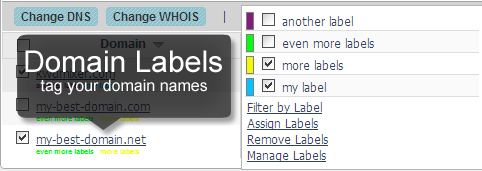
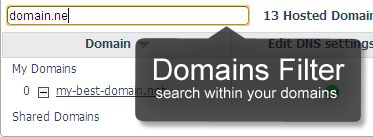
Here are some screenshots from the new features of the Hepsia Control panel:

Right-Click context menus
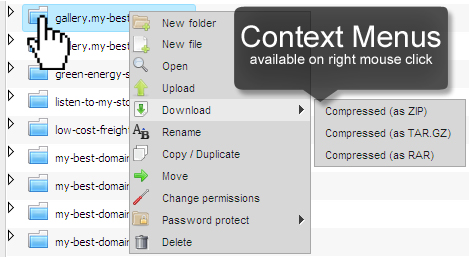
http://blog.resellerspanel.com/wp-content/uploads/2010/10/right-click-context-menus.jpg
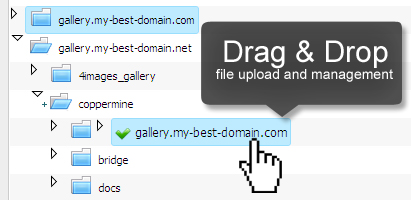
Drag & Drop file management and upload
http://blog.resellerspanel.com/wp-content/uploads/2010/10/file-manager-drag-drop.jpg
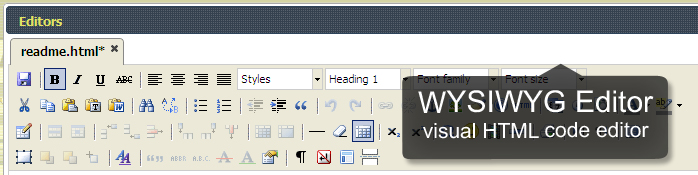
WYSIWYG HTML file editor
http://blog.resellerspanel.com/wp-content/uploads/2010/10/wysiwyg-file-editor.jpg
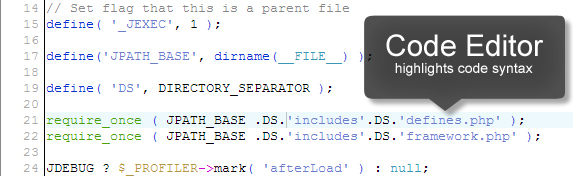
Code Editor for PHP files
http://blog.resellerspanel.com/wp-content/uploads/2010/10/file-manager-code-editor.jpg
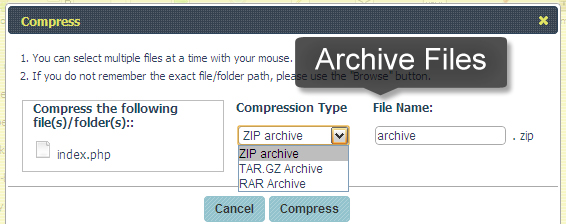
Archive files with the file manager
http://blog.resellerspanel.com/wp-content/uploads/2010/10/compress-files-with-file-manager.jpg
Domain name Labels
http://blog.resellerspanel.com/wp-content/uploads/2010/10/domain-name-labels.jpg
Domain names filter
http://blog.resellerspanel.com/wp-content/uploads/2010/10/domain-names-filter.jpg

Thanks for reading the Silverthorn Networks company blog!

Sincerely,

-The Silverthorn Networks Team

Wednesday, October 13, 2010

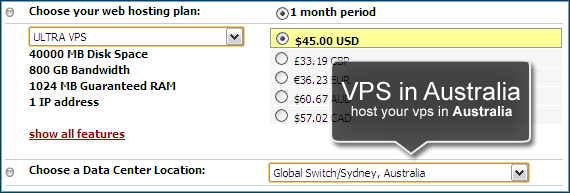
Coming Soon: VPS Servers Hosted in Australia

If you follow our blog, you already know that now we also have a data center in Sidney, Australia. For the moment, this data center can only house shared web hosting accounts. However, we are working on the subject and very soon our customers will be able to purchase Virtual Private Servers there too.

http://blog.resellerspanel.com/wp-content/uploads/2010/10/vps-in-au-data-center.png

Speaking of Virtual Private Servers, we have some more news for you – we have modified our new Hepsia Control Panel to run on VPS servers! As for the Operating System, for the moment the Control Panel runs on Debian, but in the following weeks we will also port it to CentOS and Ubuntu, making it a true multi-platform solution. For example, the cPanel web hosting Control Panel runs only on CentOS.

And before I forget, we will soon be offering Virtual Private Servers in our UK data center as well.

The aforementioned services will be made available in the following weeks, so don’t forget to regularly check our blog for updates.

Thanks for reading the Silverthorn Networks company blog!

Sincerely,
-The Silverthorn Networks Team

Thursday, October 7, 2010

A New Data Center in Australia!

After several weeks of negotiations and server setup procedures, we are finally ready to announce it – we have made a deal with a new data center facility, which is one of the biggest in the Southern Hemisphere and which is located in Sydney, Australia!

The name of this facility is Global Switch. For those of you who have never heard it, it is part of a global data center network, which consists of data centers located all over the world. And to show you that the Global Switch data center in Sydney is really something special, hear this: the Australian Department of Defense has chosen it to house several of its servers!

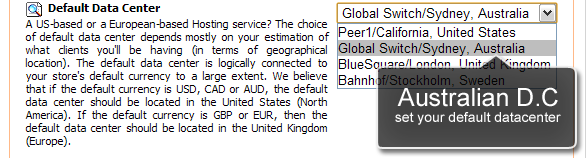
As of now, this data center is available to shared web hosting customers only and hosting accounts located there will have no price increase. The data center can be chosen from the Order form when a customer purchases his web hosting account.

http://blog.resellerspanel.com/wp-content/uploads/2010/10/australian-data-center-set-default.png

By default, each hosting reseller under the Free Reseller Hosting Program will have our Peer1 data center in the US set as the default sever facility for all his web hosting customers. To change this, and to choose the new Australian data center as the default one (or one of our European data centers – BlueSquare near London or Bahnhof in Stockholm), you will have to log into the Reseller Control Panel, navigate to the Store Settings section and choose the Miscellaneous tab. Once there, scroll down to the bottom of the page where you will see the Default Data Center menu, from where you can select the default data center for your store.

You can choose a different data center for each reseller store in your account.

Thanks for reading the Silverthorn Networks company blog!

Sincerely,
-The Silverthorn Networks Team

Wednesday, July 14, 2010

How to avoid the “Internal Server Error 500”

Each day, while browsing web pages, a visitor is bound to receive at least one error page. These error pages are displayed when the HTTP request sent to the server by the visitor’s browser cannot be completed successfully. I’m sure you are all familiar with the “404” error, which means that the page the visitor is looking for is no longer there, or the “403” error, encountered when trying to visit a web page, which requires special authorization. However, these errors are easily avoidable and can signify what the problem is right away – a missing web page, a lack of authorization, etc.

However, if you are browsing your own website and you get an “Internal Server Error 500”, this means that something has gone wrong with the web page you are viewing. However, the worst part about this error message is that it’s a “catch-all” error – it’s returned by the web server when there is a problem with the execution of the page, but the server cannot be more specific about the nature of the problem.

This makes future debugging hard – you have to review the code for this page line for line in order to eliminate any possible errors. However, this is hard and very time-consuming. This is why, I have given some of our senior support staffmembers an assignment to gather the most common reasons for this dreaded error message and present possible solutions for them. After several weeks of hard work, they are ready with their article on how to fix “Internal Server Error 500”.

Thanks for reading the Silverthorn Networks company blog!

Sincerely,

-The Silverthorn Networks Team

Thursday, June 24, 2010

Protect a server against brute force attacks

In many of my posts on online security, I have emphasized on the need for more complex passwords, which, while difficult to remember, are harder to crack. And while most people set complex passwords for the login pages of the scripts they are using, they keep forgetting that they should start from the top – with the main account password for their shared web hosting account and the root password for their Dedicated Server or VPS container.

When you are using a shared web hosting account, you rarely have to worry about server-level protection – this is being handled by your web hosting company. However, if you are running a server for which you have full root access, it’s time to take a deeper interest in online security. And the first step is to devise a very strong root password.

A root password is the main password for the server. Since most servers use the default “root” username, a hacker will only have to guess the password. A common attack aimed at cracking the password is the brute force attack – a script will try to guess the password using a combination of predefined symbols (letters and numbers), combining them in all possible ways. This attack is so popular, yet simple and effective, that there is even a Firefox plug-in allowing you to run brute force attacks.

This is why, our support team has prepared a special article, which will help you to learn how to protect a server against brute force attacks. There you can find several tips on what to do, depending on the Control Panel tool you are using. There is also a solution for Control Panel-free server packages like the Base VPS server plan. Check out the article as soon as possible to find out how to secure your server.

Thanks for reading the Silverthorn Networks company blog!

Sincerely,

-The Silverthorn Networks Team

Wednesday, June 2, 2010

Unlimited MySQL storage for predefined hosting plans

As of last week, all our predefined shared web hosting plans – the SilverSIMPLE, the SilverXS and the SilverXTREME web hosting plans – come with unlimited MySQL storage space. All new users will enjoy these features right after signup, while existing users will be upgraded upon request.

This update comes after several weeks of server preparation and testing carried out by our administrators.

Currently, our developers are working on yet another improvement, which will allow all our resellers under the Free Reseller Program who create custom web hosting plans using our Liquid Plan Builder tool to also create plans with unlimited MySQL storage. As soon as we have an update regarding this, we will announce it on our website.

Thanks for reading the Silverthorn Networks company blog!

Sincerely,

-The Silverthorn Networks Team

Friday, May 28, 2010

Hepsia control panel file manipulation

I have another video from our new and soon-to-be released Hepsia Web Hosting Control Panel. In the introduction video we showed how the new control panel will look, now we will show you our brand new file manager, which has been reworked from ground zero. Our developers received a huge list of needed improvements, gather from our support team, based on both their and user feedback and have done their best to create a top-class control panel.

Hepsia File Manager :


Thanks for reading the Silverthorn Networks company blog!

Sincerely,

-The Silverthorn Networks Team